

WALT: User Guide
Digital Innovation
Version: 1.0
Contents
- 4.1 Main Chat Page
- 4.2 Admin Manager – Invitations Page
- 4.3 Admin Manager – Users Page
- 4.4 Profile Page
1. Version Control
This section records the essential details regarding the publication and maintenance of the WALT manual.
- Date of Issue: March 16, 2026
- Authored By: Digital Innovation Team
- User Interface Version: 1.3.0
- Processing Engine Version: 1.3.0
This document will be updated in accordance with major revisions, feature enhancements, or changes in the application’s functionality. For questions regarding version history or application details, please contact the Digital Innovation Team.
2. Introduction
Welcome to WALT!
This tool is an internal AI-powered assistant that helps Werfen employees quickly find accurate answers from internal documentation. By providing contextual, on-demand access to relevant information, WALT reduces time spent searching, encourages self-service, and helps teams focus on higher-value work.
WALT’s core function allows users to ask questions in natural language and then retrieve and summarize the most relevant information from curated Knowledge Libraries, showing supporting context so answers can be reviewed and trusted.
This user guide provides comprehensive guidance on utilizing WALT’s main features from initial setup through effective use of its functionalities.
3. Getting Started
Before accessing WALT, please ensure your system meets the following requirements:
- A modern web browser (Edge recommended)
- Internet connection
- Connection to Werfen VPN or Werfen Wi-Fi
After ensuring the system requirements are met, you are ready to access WALT. To do that follow the next steps:
- In your web browser, navigate to the following URL: WALT.
- Click on “Log in with your Werfen account” button.
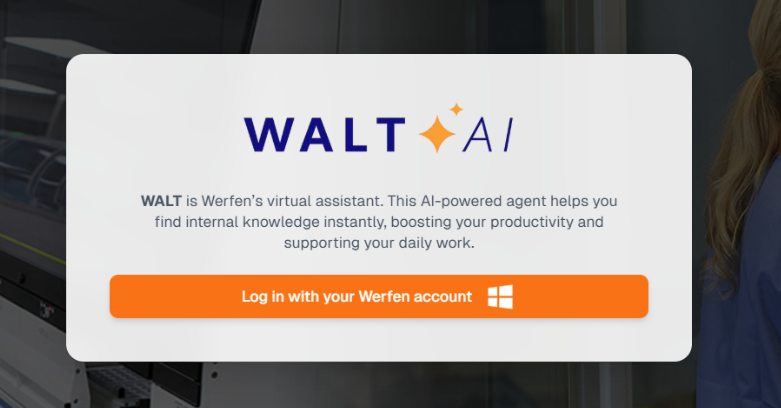 Figure 1. Authentication Process
- Introduce your Werfen credentials and follow the two-factor authentication process.
- After authentication, you will be redirected to the application main page represented in Figure 2.
- Optional Step if you received an invitation code: Navigate to the Key icon at the bottom left of the dialogue box and paste in the code you received. Follow steps 1-3 below.
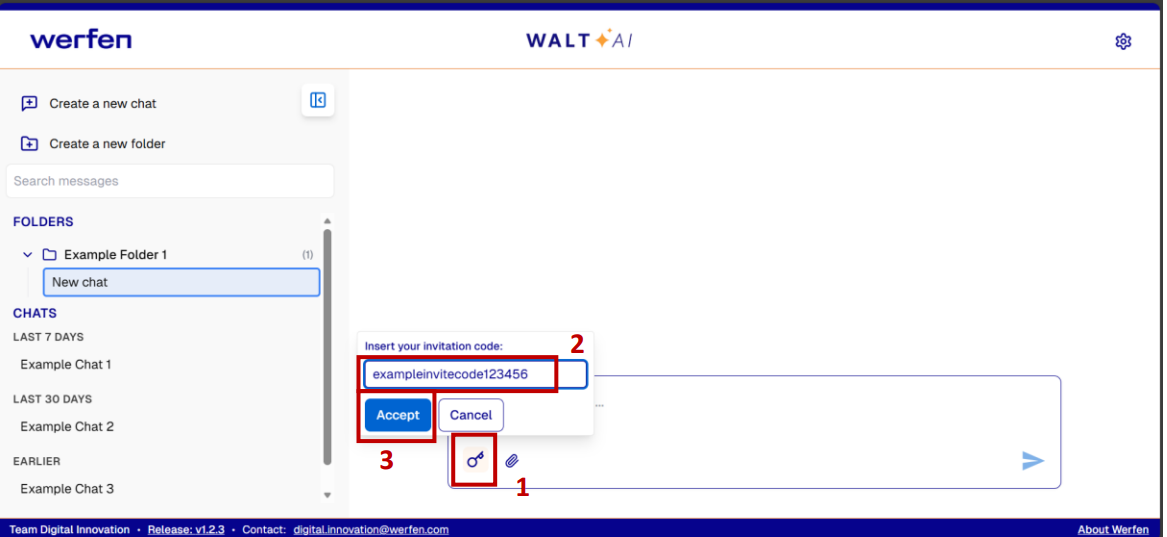 Figure 2. Invitation Code Process
4. Application and Features Overview
This section provides a visual overview of WALT’s primary components and functionalities. To describe these components clearly, we will organize them according to the page on which they appear. The description of each application's component follows the same numbering system as presented in Figures 3 to 6.
4.1 Main Chat Page
-
Create a new chat: Allows the user to create a new chat window
-
Create a new folder: Allows the user to create a new folder to organize chats in
-
Search messages: Click the Search messages button in the sidebar to open a search window in the center of the screen. Type to search through your chat messages and click on any result to navigate to that message in its respective chat
-
Existing folders:
- Add a new chat to a folder: Hover over the folder and click the Create chat in folder button
- Add an existing chat to a folder: Drag the chat from the sidebar into the folder you want to drop it into – you will see a highlighted box around the folder you want to drop it into
- Remove a chat from a folder: Drag the chat from the sidebar and hover over CHATS and a (DROP HERE TO REMOVE FROM FOLDER) box will appear
- Edit a folder’s name: Hover over the folder name you want to change, click the Pencil icon, and change the name as desired
- Delete a folder: Hover over the folder you want to delete and click the X icon. This will delete the folder as well as the chats inside the folder
-
Edit or Delete a Chat: The Pencil icon allows users to rename the chat name. The X icon allows users to permanently delete that chat
-
Ask a question: Enter question into the dialogue box and press enter or click the Send button to submit
-
Add files: Click the Paperclip icon, drag and drop files into WALT
- WALT currently supports single file uploads at a time
- Files will need to finish uploading and processing before asking questions
- To remove files, hover over the file you want to remove and click the X icon
-
Accept invite code: (mentioned in Section 3) Allows users to paste in the invitation code to gain access to an Access Group
-
Contextual Information: Allows users to view what context WALT used to generate the response. Users can view a summarized version of the context or click the hyperlink to view the entire document
-
Copy Response: Allows users to copy the response that was generated
-
Feedback: Allows users to indicate a correct response with the Thumbs Up icon, or an incorrect response with the Thumbs Down icon. Users can provide supporting details for their selection
- Note: The Thumbs Down should only be used when WALT incorrectly answers a question that it could have answered correctly based on the provided information
-
Disclaimer: This message reminds users that the content is AI-generated and should be reviewed before using
-
Settings gear: Allows users to navigate to different pages throughout WALT
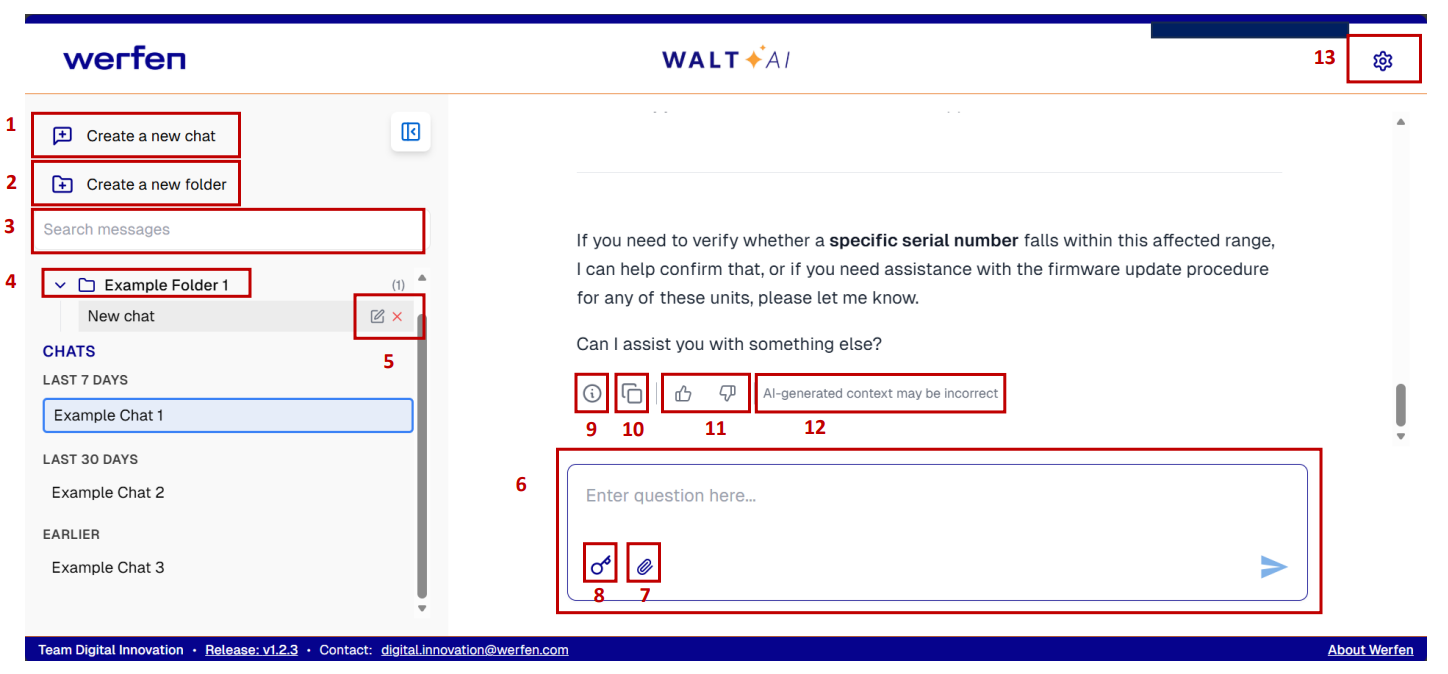 Figure 3. WALT Main Chat Page
4.2 Admin Manager – Invitations Page
As seen in Figure 4, this tab allows users with Manager or Admin permission to create and manage invitations to Access Groups:
- Email invitations: Allows Managers and Admins to provide WALT access to users by email
- Enter the user(s) email address (hit Enter each time if adding multiple emails)
- Users will have access once they login to WALT
- Code invitations: Allows Managers and Admins to provide WALT access to users by code
- Select which Access Group to provide users access to. Click Generate Code and share it with the desired users
- Users will have access once they follow Section 3 (above)
- OR once the code is created, click Link in the Invite by Code window and share the link with users
- Users will have access once they click the link
- Shareable Link invitations: Allows Managers and Admins to provide WALT access to users by shareable link
- Follow section 15 (above) to generate an Access Code
- Once the code is created click Copy in the Invitations page and share the link with users
- Users will have access once they click the link
Invitation codes are valid for 7 days.
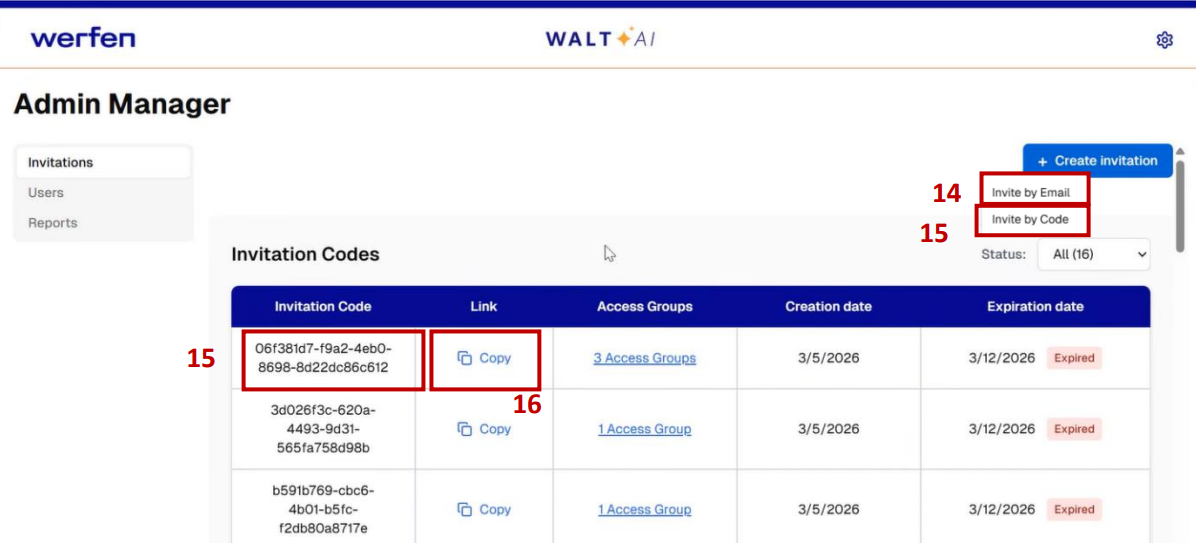 Figure 4. Admin Manager: Invitations Page
4.3 Admin Manager – Users Page
As seen in Figure 5, this tab allows users with Manager or Admin permission to add or remove existing users to Access Groups and provide Manager permissions to other users in the Access Group:
- Edit User Permissions: Allows Managers or Admins to update a user’s Access Group permissions. Click the Pencil icon to update.
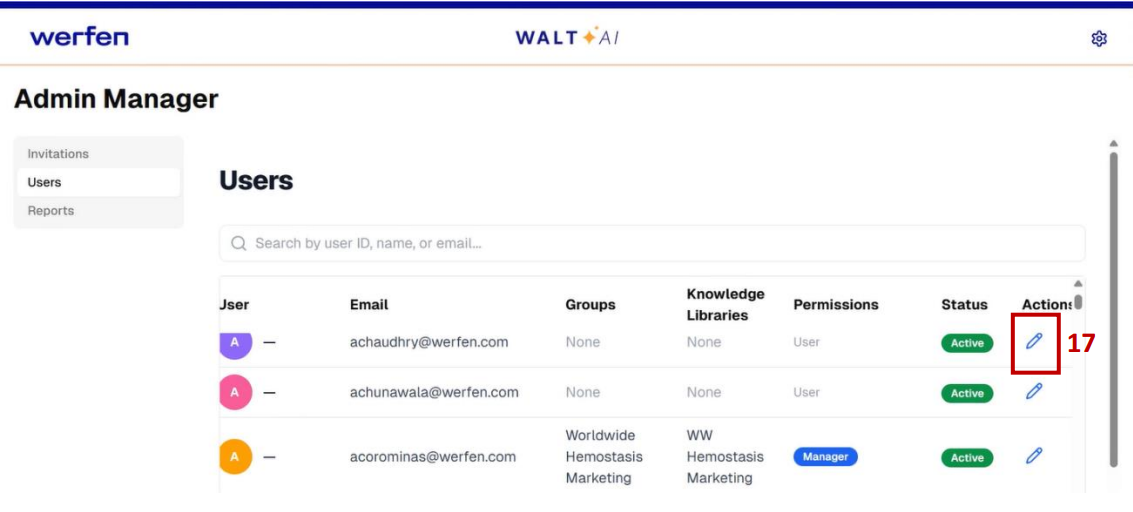 Figure 5. Admin Manager – Users Page
4.4 Profile Page
As seen in Figure 6, this page allows users to view which Access Groups they have access to as well as the Knowledge Libraries and Agents within those groups:
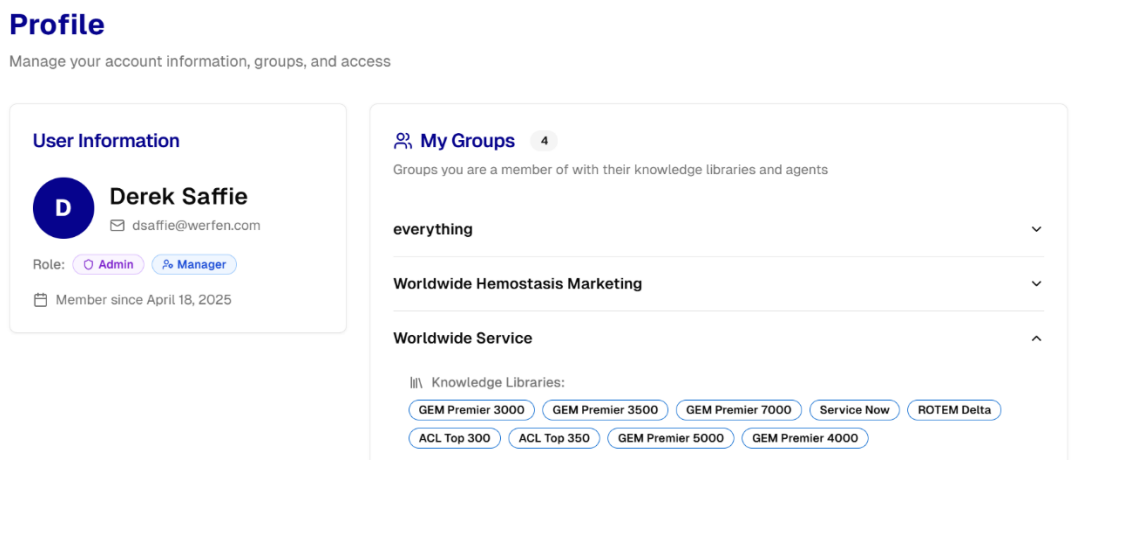 Figure 6. Profile Page
5. How to Use
In this section a step-by-step guide for the main functionalities of WALT is provided, namely: asking a question, viewing the context, providing feedback, and copying the response.
Step 1: Ask a Question
- Enter your question related to the relevant information in the dialogue box at the bottom of your screen
- Press Enter or click on the Send button
Step 2: Review the Response and View the Contextual Information
- Review WALT’s response
- Click the Context button at the bottom to review what information was used to generate the response
Step 3: Provide Feedback (Thumbs Up or Thumbs Down)
- If the generated response is correct, press the Thumbs Up icon at the bottom of the response
- Optional: add supporting details that made the response particularly helpful
- If the generated response is not correct, press the Thumbs Down icon
- Optional (highly encouraged): add supporting details as to why the response was incorrect
Step 4: Copy the Response
- Click on the bottom Copy icon to copy the AI-generated response to your clipboard and paste it wherever needed.
6. Best Practices
- Be Specific: Ask clear, well-defined questions using full sentences. Include relevant context such as the product, process, or goal you’re working on to help WALT provide more accurate results.
- Longer chats are not optimal for responses. WALT uses information from the more recent messages to maintain relevant information.
- Understand the Scope and Limitations: Use WALT for tasks it is designed to support, such as answering questions or retrieving information. Do not rely on it as a replacement for expert judgment or decision-making.
- Review and Validate Responses: always review WALT’s AI-generated responses before using them, especially for technical, regulatory, or customer-facing work. AI can sound confident while still being incomplete or incorrect.
- Provide Feedback: Use the built-in feedback options (thumbs up/down and comments) to help improve response quality over time. Your feedback helps the Digital Innovation Team learn where improvements are needed.
7. Content Policy
Use It for Your Work
WALT is intended to support work-related tasks. Appropriate uses include:
- Asking questions about products, tools, or processes
- Troubleshooting issues
- Understanding technical concepts
Protect Sensitive Information
To ensure data security and compliance, do not share or request:
- Passwords or credentials
- Personal, confidential, or regulated data
- Customer or patient information
It's okay to ask general questions about how systems or security works.
Keep It Lawful and Respectful
Use WALT in a way that is lawful, respectful, and professional. Do not generate or request content that is:
- Harassing, hateful, or discriminatory
- Threatening or abusive
- Related to illegal or unethical activities
Respect System Safeguards
WALT includes built-in protections to ensure safe and compliant use. Do not attempt to:
- Bypass security or access controls
- Override system instructions or safeguards
- Manipulate or "jailbreak" the assistant
Use AI Responsibly
WALT provides assistive, AI-generated responses, not final decisions. Always review and validate outputs, especially for:
- Regulatory or quality-related work
- Customer-facing communications
Use official systems as the source of truth for controlled documents.
When in Doubt
If you're unsure whether something is appropriate:
- Ask WALT — the system is designed to help with legitimate work questions, not penalize honest mistakes
- Use judgment and follow Werfen policies
- When needed, confirm with your manager or relevant team
8. FAQs
Q: How long does the invite code last?
A: 7 days.
Q: Does WALT learn from my feedback?
A: No, WALT is not learning from your feedback. The Digital Innovation Team reviews your feedback to identify where WALT needs to improve.
9. Support
Please submit ServiceNow ticket if there are any issues with the application or its functionality: